How to put your menu online without typing a single item
The Carder Team · Jul 1, 2026
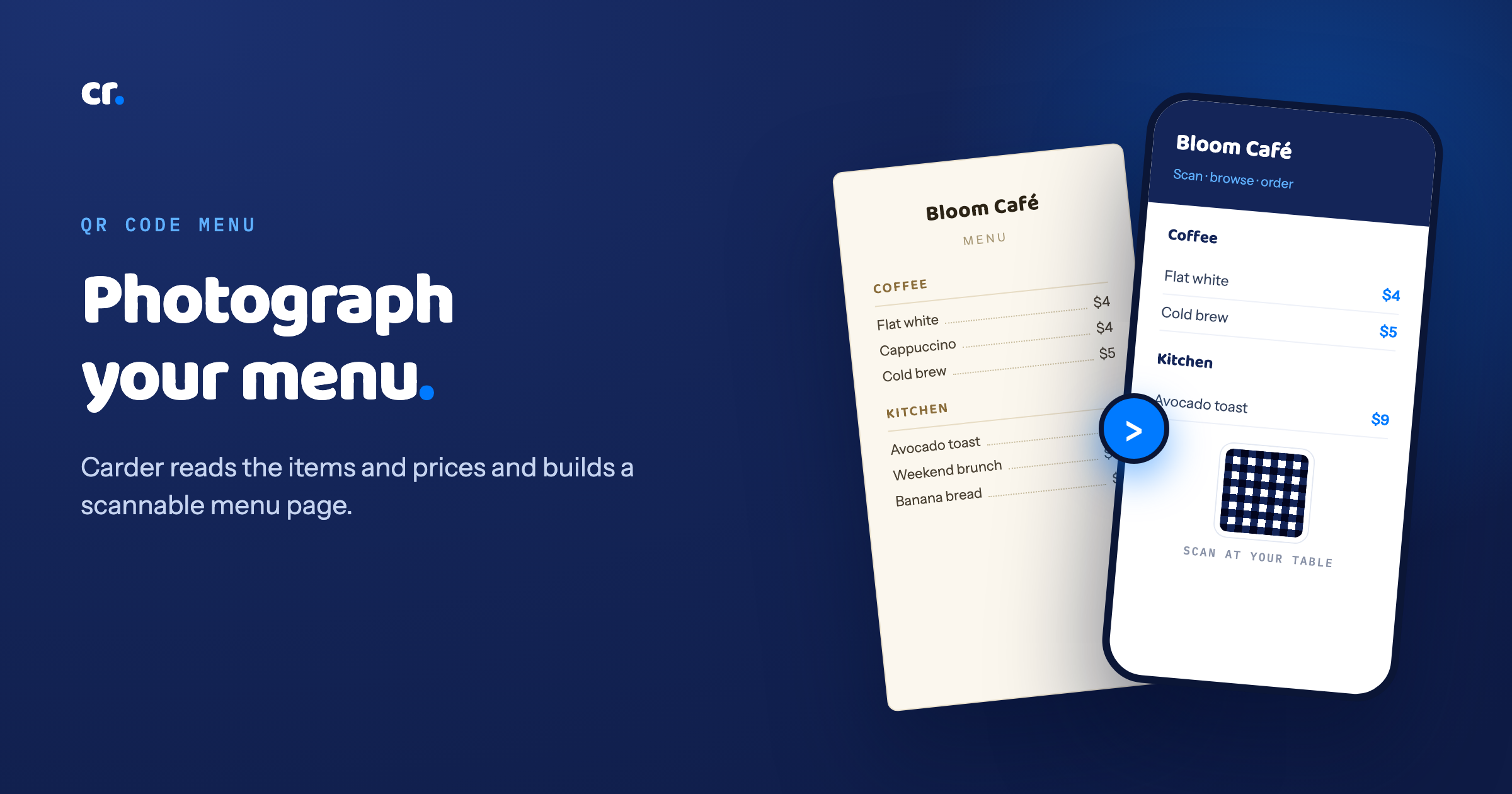
Every restaurant has a printed menu it is proud of, and a digital version that is either a blurry PDF, a photo nobody can read on a phone, or nothing at all. The gap is not laziness. It is that putting a menu online the normal way means retyping forty items, their prices, and their categories into some form, then keeping it all in sync every time the kitchen changes a dish.
That is the part that never gets done. So here is a way to skip it entirely.
Take a photo, get a menu page
Carder has a menu scanner on the Business plan. You upload a photo of your printed menu, the actual paper one on the table, and Carder reads it.
It pulls out:
- Every item, by name
- The price next to each one
- The categories, so starters, mains and drinks stay grouped the way you laid them out
From that it builds a browsable menu page. Clean, readable on any phone, grouped exactly like your printed version, and it comes with its own QR code you can put on the table and the takeaway counter.
No form. No retyping. You photograph the thing you already have and the page assembles itself.
Why a real menu page beats a PDF
A lot of places link a PDF and think the job is done. It is not, and your customers feel it.
A PDF opens as a tiny document someone has to pinch and drag around to read. It looks the same on a phone as it does on a billboard, which is to say wrong. It does not fit the screen, it is slow to load, and it makes a hungry person work.
A menu page is built for the phone. It fits the screen, it loads instantly, the categories are tappable, and the prices are right there in text that a phone can actually render. Same information, completely different experience, and the experience is the thing people remember.
The QR code is the point
The reason to do this at all is the QR code. Print it once, put it on the table, and every diner has your full menu in front of them in a second. No app, no download, they point their camera and it opens.
The same code works on a sign by the door for takeaway, on a flyer, on your delivery bags, anywhere someone might want to see what you serve before they order. One code, your whole menu, always current.
When you change a dish
Kitchens change. A dish comes off, a price goes up, a special arrives for the weekend. On a printed menu that means a reprint. On a PDF it means exporting a new file and relinking it.
On your Carder menu page you edit the item and it is live. The QR code does not change, the printed sticker on the table does not change, the menu behind it just updates. You fix it once and everyone scanning sees the new version.
The whole flow, start to finish
- Take a clear photo of your printed menu.
- Upload it to Carder on the Business plan.
- Carder reads the items, prices and categories and builds the menu page.
- Check it over and edit anything the scan got wrong or you want to reword.
- Print the QR code onto your tables and counter.
- Done. Change a dish anytime and it updates behind the same code.
Your menu already exists on paper. This just turns it into something a phone can read, in the time it takes to photograph it.
Want to try it on your own menu? Generate your site, free, then add the menu scanner on the Business plan and photograph your way to a page in minutes.
The bigger picture
Your menu is the heart of it, but it is one piece of the full page. For everything a restaurant link should do, hours, location, ordering and the menu together, read how to build a restaurant website that actually brings in orders.